S3 Ingestion
S3 Ingestion lets you pull files from Amazon S3 or S3-compatible storage (MinIO, NCP Object Storage, etc.) directly into your AI Data Foundry project.
This document covers S3-specific topics only. For behavior common to all sources — file ingestion, automatic schedules, job monitoring — see the Ingestion Overview.
Prerequisites
You will need the following information to connect an S3 source.
| Item | Description |
|---|---|
| Bucket name | The name of the S3 bucket where files are stored (e.g., my-documents-bucket) |
| Region | The AWS region where the bucket is located (e.g., ap-northeast-2). The form defaults to ap-northeast-2 — change it to match your actual bucket region |
| Access Key ID | Access Key ID of an IAM user with access to the S3 bucket |
| Secret Access Key | The Secret Access Key corresponding to the Access Key above |
IAM Permissions
The IAM user used for the connection needs at least the following permissions.
{
  "Version": "2012-10-17",
  "Statement": [
    {
      "Effect": "Allow",
      "Action": [
        "s3:HeadBucket",
        "s3:ListBucket",
        "s3:GetObject"
      ],
      "Resource": [
        "arn:aws:s3:::my-documents-bucket",
        "arn:aws:s3:::my-documents-bucket/*"
      ]
    }
  ]
}
Replace
my-documents-bucketwith your actual bucket name.
s3:HeadBucket— Verifies the bucket exists during connection tests3:ListBucket— Lists files and folders in the buckets3:GetObject— Downloads files during ingestion
Connecting an S3 Source
In the Connect a new source dialog, select Amazon S3 as the source type and fill in the fields.
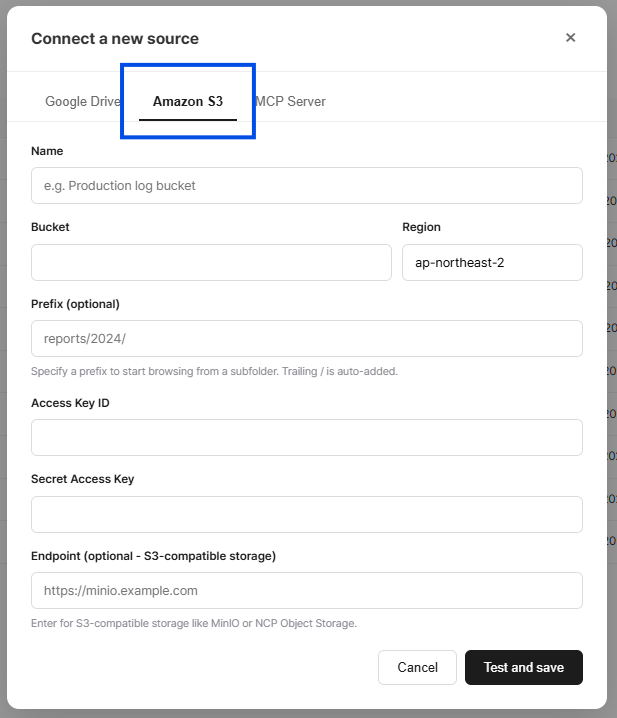
| Field | Required | Description |
|---|---|---|
| Name | Yes | A friendly name for this source (e.g., "Production log bucket") |
| Bucket | Yes | S3 bucket name |
| Region | Yes | AWS region (form default: ap-northeast-2 — change to match your bucket) |
| Prefix | No | Start browsing from a specific folder (e.g., reports/2026/). A trailing / is automatically appended |
| Access Key ID | Yes | IAM Access Key ID |
| Secret Access Key | Yes | IAM Secret Access Key |
| Endpoint | No | Only needed for S3-compatible storage |
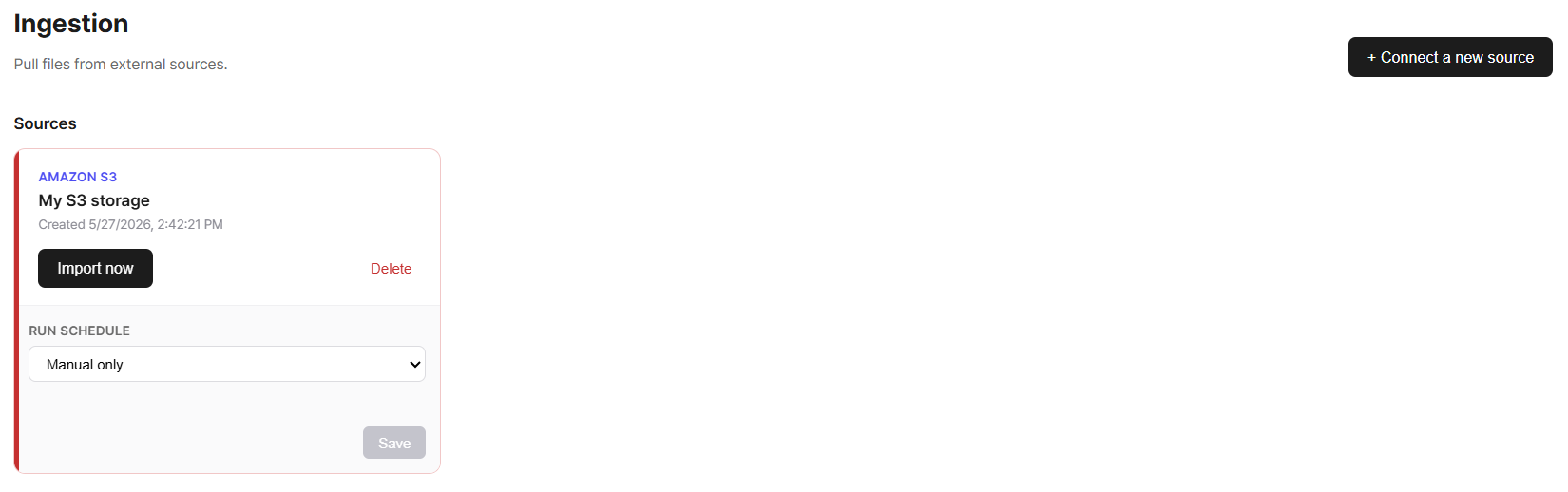
Click Test and save to automatically test that the bucket is accessible. If the test passes, the source is registered.
Connecting S3-Compatible Storage
In addition to Amazon S3, any storage that provides an S3-compatible API can be connected in the same way.
How to Connect
Enter the storage endpoint URL in the Endpoint field when connecting a source.
| Storage | Endpoint Example |
|---|---|
| MinIO (local) | http://localhost:9000 |
| NCP Object Storage | https://kr.object.ncloudstorage.com |
| Cloudflare R2 | https://{account_id}.r2.cloudflarestorage.com |
All other fields (Bucket, Region, Access Key ID, Secret Access Key) should be filled with the values provided by the respective storage service.
When an Endpoint is provided, Path Style access is automatically enabled. No additional configuration is needed.
FAQ
For common questions (missing files, re-ingesting modified files, deleting sources, etc.), see the Ingestion Overview.
Connection to the source fails
- Verify that the IAM user has the
s3:HeadBucketpermission. - Double-check that the bucket name and region are correct.
- For S3-compatible storage, make sure the Endpoint URL is valid.
I want to ingest a specific folder only
Enter the folder path (e.g., reports/2026/) in the Prefix field to ingest only files under that path. If a scope is large enough to exceed the per-run limit, splitting it into multiple sources by Prefix also reduces the chance of missed files.