Ingestion Overview
Ingestion lets you pull files stored in external sources directly into your AI Data Foundry project.
After connecting a source, use Import now to ingest files immediately, or set up an automatic schedule to periodically collect newly added files.
See each guide for the supported source types and how to connect them. This document covers behavior common to all sources.
| Source | Guide |
|---|---|
| Google Drive | Google Drive Ingestion |
| Amazon S3 (incl. S3-compatible storage) | S3 Ingestion |
| MCP Server | MCP Ingestion |
| Email (IMAP) | Email (IMAP) Ingestion |
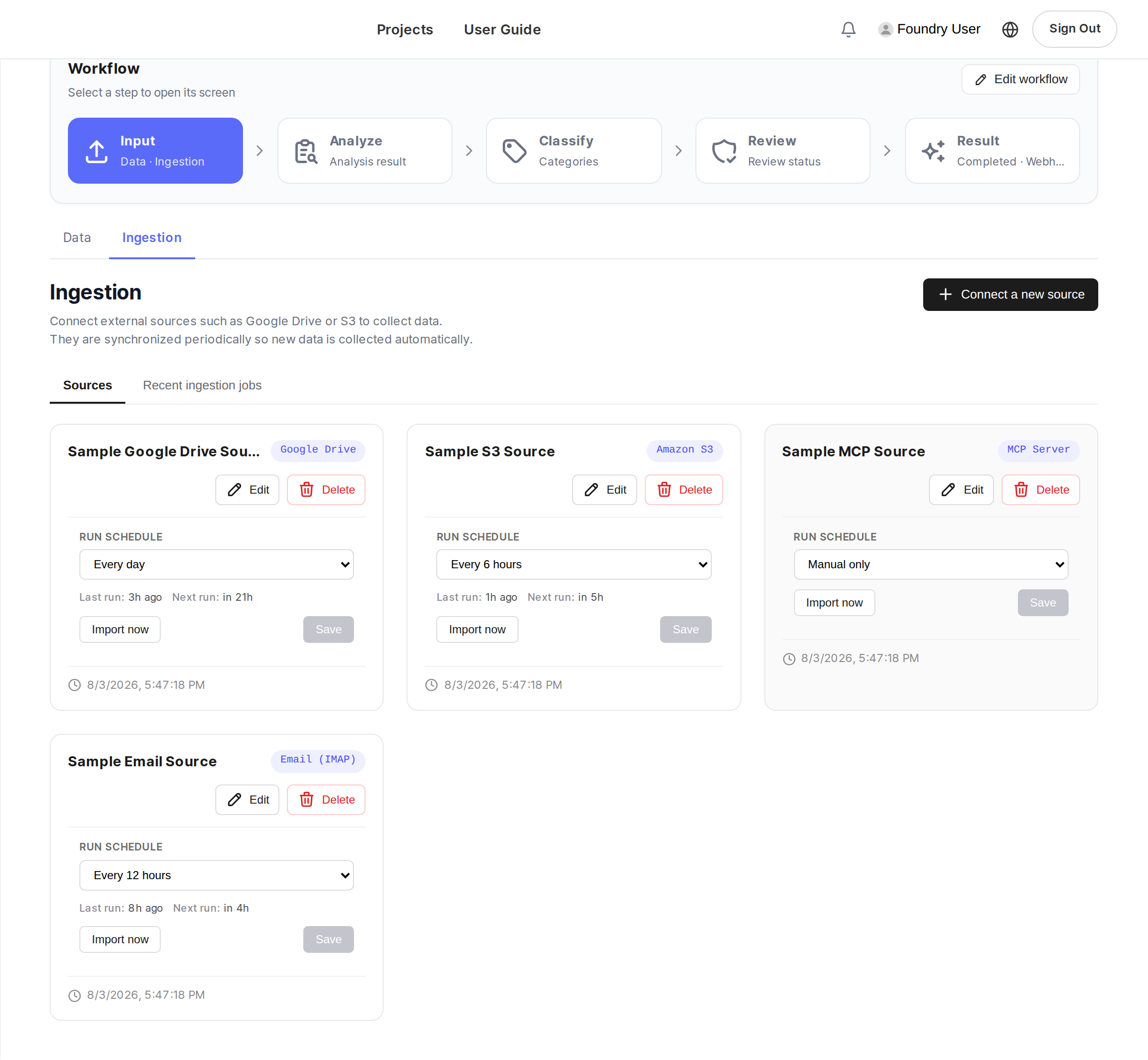
Connected sources appear as cards in the Sources list on the Ingestion tab, and the badge in the top-right corner of each card shows its source type.
Connecting a Source
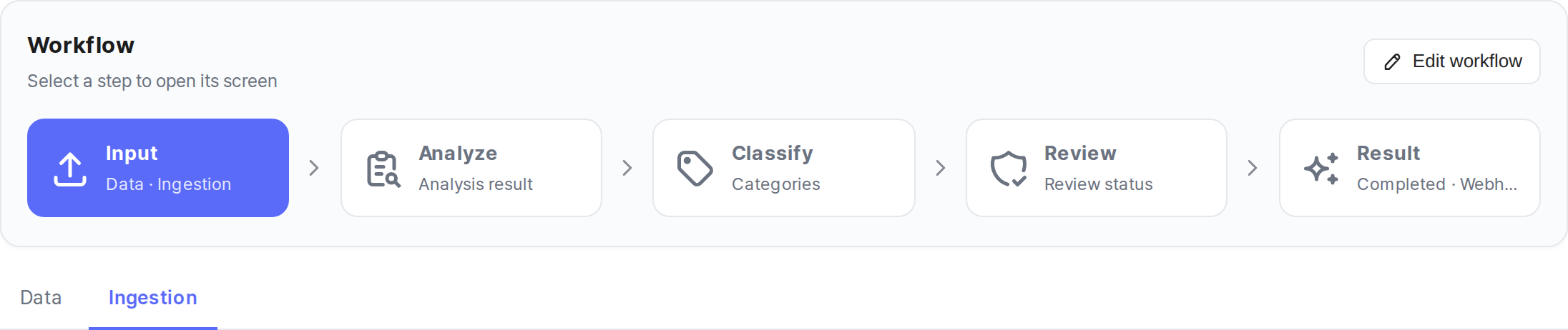
Click Workflow in the left sidebar. In the workflow stage bar at the top, open the Input step and select the Ingestion sub-tab (next to Data).
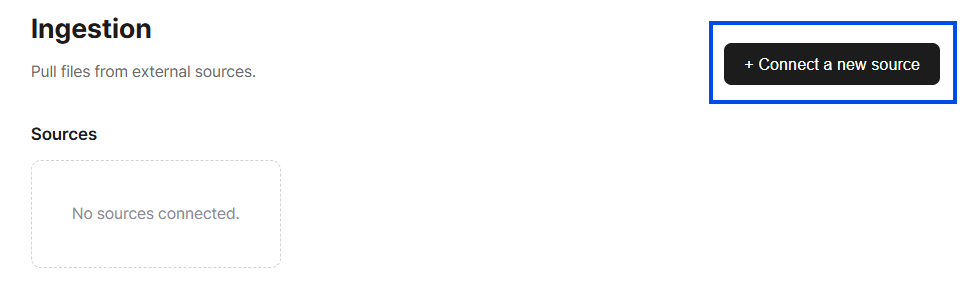
Click Connect a new source.
Select a source type tab and fill in the source-specific fields. See each source guide for field descriptions.
Click Test and save. The entered information is used to connect to the actual source and verify access. The source is registered only when verification passes; on failure, an error is shown at the bottom of the screen and the source is not saved.
Credentials are encrypted before storage and are never included in API responses.
Editing a Source
Use the Edit button on a registered source card to change its name and settings.
- Leave the credential fields empty to keep the existing credentials.
- If you enter new values, they replace the existing ones after a connection test. Use this to renew expired tokens or access keys.
Ingesting Files
Click Import now on a registered source card to scan the target scope and automatically ingest eligible files.
How Ingestion Works
- Import now: Scans the entire target scope. Files already ingested are skipped; only new files are imported.
- Scheduled runs: Work incrementally — only files modified since the last run are listed. If the source does not provide modification time metadata, the full listing is fetched and filtered by deduplication.
- Deduplication: Files already ingested (same source + same file identifier) are not imported again. Modifying a file's contents under the same identifier does not trigger re-ingestion.
- Per-run limit: Each run processes up to 200 files. If the target contains more, some files may not be ingested — we recommend splitting the scope (by folder, prefix, etc.) into multiple sources.
Progress is shown in real time in the Recent ingestion jobs section at the bottom of the page.
Supported Formats and Size Limits
- Formats: All file formats supported by the project (Supported Formats)
- Size: Up to 100 MB per file
Setting Up an Automatic Schedule
To automatically ingest new files on a recurring basis, enable a schedule.
- Click the Run schedule dropdown on the source card.
- Choose your preferred interval:
| Interval | Description |
|---|---|
| Manual only | No automatic ingestion (default) |
| Every 6 hours | Automatically ingest new files every 6 hours |
| Every 12 hours | Automatically ingest new files every 12 hours |
| Every day | Automatically ingest new files every 24 hours |
| Every week | Automatically ingest new files every 7 days |
- Select an interval, turn on the Enabled checkbox, and click Save to apply the schedule.
Once the schedule is active, the source card displays the Last run time and Next run estimate.
Run Now
Click Import now at any time to trigger an immediate ingestion without waiting for the next scheduled cycle. When the run completes, the last-run time is updated, so the next scheduled run only picks up changes made after it.
Monitoring Ingestion Jobs
The Recent ingestion jobs table at the bottom of the Ingestion page shows the history of all ingestion jobs.
| Item | Description |
|---|---|
| Source | Which source the files were ingested from |
| Mode | How the job was triggered. Jobs started with Import now behave the same way as scheduled runs and are therefore shown as "Scheduled" |
| Status | Pending / Running / Completed / Partial / Failed |
| Success / Fail | Number of successfully ingested files and failed files |
| Started / Completed | Job start and completion timestamps |
Click a job row to view the detailed list of ingested files.
Status Reference
| Status | Meaning |
|---|---|
| Pending | The job is queued and waiting to be processed |
| Running | Files are being downloaded and imported into the project |
| Completed | All files were successfully ingested |
| Partial | Some files succeeded, some failed (unsupported format, size exceeded, etc.) |
| Failed | The entire job failed (connection error, etc.) |
FAQ
Files are missing from ingestion
- Each run processes up to 200 files. If the target contains more, split the scope into multiple sources.
- Scheduled runs only fetch files modified since the last run. To re-check the entire scope, run Import now.
- Files already ingested (same source + same file identifier) are skipped by deduplication.
Ingested files do not appear in the project
- Check that the ingestion job status is Completed.
- Verify that the file format is included in Supported Formats.
I want to re-ingest a modified file
Files with the same identifier are skipped automatically even if their contents were modified. To ingest them again, delete the source and register it again. This re-ingests all files from scratch.
What happens when a token or access key expires?
Authentication errors occur from the next ingestion attempt. Issue a new token or key, then enter the new credentials via Edit on the source card — they replace the old ones after a connection test. There is no need to delete and re-register the source.
Will deleting a source also delete already ingested files?
No. Deleting a source only removes the connection configuration and schedule settings. Files already imported into your project remain untouched.