MCP Ingestion
MCP Ingestion lets you pull files exposed by a Model Context Protocol (MCP) server directly into your AI Data Foundry project.
This document covers MCP-specific topics only. For behavior common to all sources — file ingestion, automatic schedules, job monitoring — see the Ingestion Overview.
Prerequisites
To connect an MCP source, you need the following information.
| Item | Description |
|---|---|
| Endpoint URL | The full URL of the MCP server (e.g., https://mcp.example.com/mcp) |
| Bearer Token | (Optional) An access token, only for servers that require authentication |
| URI Prefix | (Optional) Limits ingestion to a specific area of the server |
Supported MCP Server Requirements
An MCP server must meet all of the following conditions to be connected.
- It must support the Streamable HTTP transport. Local stdio-only servers cannot be connected directly.
- If authentication is required, it must support Bearer Token authentication. Servers that only support the OAuth 2.0 dynamic token flow (e.g., the official hosted Notion MCP server) cannot be connected directly at this stage.
- It must expose files through at least one of the following:
- Resources —
resources/list+resources/read - Tools —
tools/list+tools/call(in this case, the tools to use are inferred automatically at registration time)
- Resources —
Finding the Endpoint URL and Token
The values used for the connection are provided by the MCP server operator. They are typically given in one of two forms.
- A production server: a full URL such as
https://<server domain>/mcp, plus a separately issued Bearer Token - A server previously used through a bridge such as
mcp-remote: use the upstream URL and theAuthorization: Bearer …header value from the bridge configuration as-is. Note that tokens in bridge configurations may have been issued for other purposes and carry broader permissions than necessary — when possible, issue a new token dedicated to ingestion.
Treat tokens like passwords. Use a token with read-only permissions, and revoke tokens that are no longer used for ingestion at the place they were issued.
Connecting an MCP Source
In the Connect a new source dialog, select MCP Server as the source type and fill in the fields.
| Field | Required | Description |
|---|---|---|
| Name | Yes | A friendly name for this source (e.g., "Internal docs MCP") |
| Endpoint URL | Yes | The full URL of the MCP server (e.g., https://mcp.example.com/mcp) |
| Bearer Token | No | Enter only if the server requires authentication |
| URI Prefix | No | Enter to ingest only a specific resource area (e.g., file:///workspace/) |
Click Test and save to automatically perform the following:
- Connect to the actual MCP server at the entered endpoint
- Detect how the server exposes files (Resources / Tools)
- For Tools-based servers, automatically map the tools to use
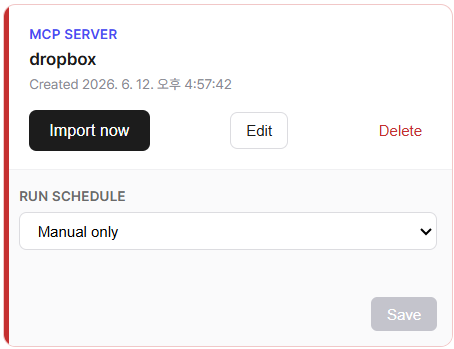
Once all checks pass, the source is registered and a source card appears.
URI Prefix Tips
Enter the URI Prefix in the URI scheme format used by the MCP server. Check the resource URI format in your MCP server's documentation, then enter a partial prefix to ingest only the matching items.
- Leave it empty to target all resources exposed by the server.
- The prefix matches by startsWith. Include the trailing
/to scope to the intended folder only. - Examples:
file:///workspace/,s3://my-bucket/reports/
Example: Connecting Dropbox
This example connects the official MCP server provided by Dropbox. See the Dropbox help article for the full picture.
1. Issue a Dropbox access token
- Sign in to the Dropbox App Console and create a new app with Create app. We recommend creating a new app dedicated to ingestion.
- On the Permissions tab, check the read permissions (
files.metadata.read,files.content.read) and save. Write and sharing permissions are not needed for ingestion — do not grant them. - On the Settings tab, under OAuth 2 → Generated access token, click Generate to issue an access token.
If you change permissions, regenerate the token for the changes to take effect. Token expiry follows your app's Access token expiration setting; once a token expires, ingestion fails with an authentication error from the next run.
2. Connect the source
In the connection dialog, select MCP Server as the source type, enter https://mcp.dropbox.com/mcp as the Endpoint URL, and paste the access token issued above into the Bearer Token field. Leave URI Prefix empty.
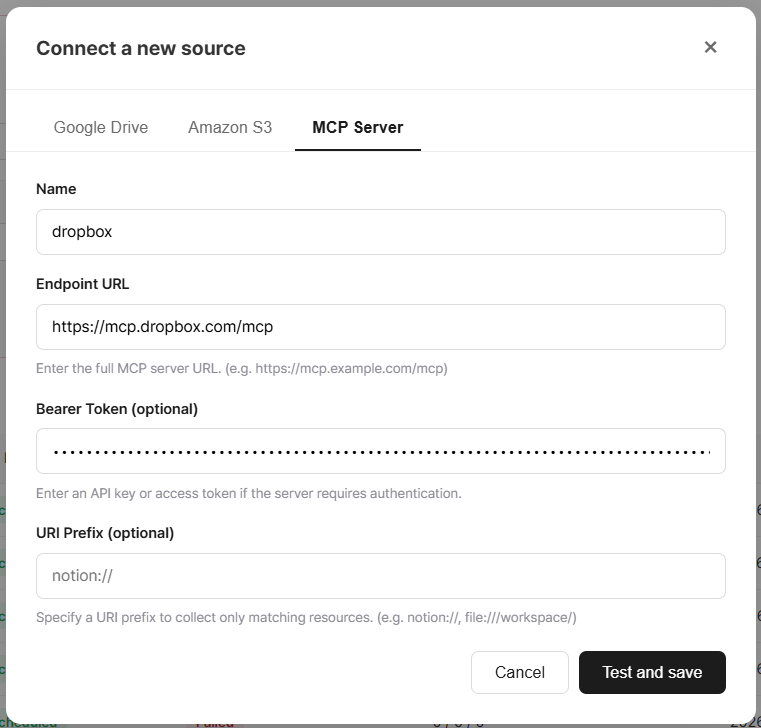
Click Test and save to connect to the Dropbox MCP server; the file exposure method is detected automatically and the source is registered. You can then use Import now to ingest files from Dropbox.
MCP-Specific Ingestion Notes
For the common ingestion behavior (full scan, incremental runs, deduplication, per-run limit), see the Ingestion Overview. The following additionally apply to MCP sources.
Subfolder Traversal
Subfolders may not be traversed automatically. In particular, Tools-based servers only target items at a single depth. To ingest files in a deeper area, add a separate source with a URI Prefix pointing to that area.
Non-file Content Is Not Supported
Content exposed by an MCP server that is not in file form (e.g., block/page-structured content such as Notion or Confluence) cannot be ingested at this stage. As a workaround, use an MCP server that exposes such content pre-converted to a supported format like PDF or DOCX, or ingest files exported with a separate tool.
FAQ
For common questions (missing files, re-ingesting modified files, deleting sources, etc.), see the Ingestion Overview.
Connection to the source fails
The connection test verifies the MCP server's response and how it exposes files. If it fails, check the following.
- Make sure the endpoint URL is a full URL starting with
https://. (Most common cause.) - Make sure the server supports the Streamable HTTP transport. stdio-only servers and OAuth-only servers cannot be connected directly.
- If the server requires authentication, make sure the Bearer Token is valid and not expired.
- For servers on an internal network, make sure the URL is network-reachable from the AI Data Foundry servers.
The job fails immediately with both success and fail counts at 0
The server connection succeeded, but listing files was rejected. Common causes:
- The token was issued with a scope that allows listing but not the actual calls
- The server requires additional parameters for listing that the automatic mapping did not include
Ask the server operator which permissions and parameters are required.
The source registered, but no files come in
- The URI Prefix may be too narrow, matching no files. Clear it and run again.
- The server may expose only unsupported file formats. See Supported Formats.
- For Tools-based servers, subfolders are not traversed automatically. Try adding a source with a URI Prefix pointing to the deeper area.
What happens when the token expires?
Authentication errors occur from the next ingestion attempt. Issue a new token, then use Edit on the source card and enter the endpoint URL together with the new token — they replace the old credentials after a connection test. There is no need to delete and re-register the source.